
Why Human Evaluation Matters
Automated evaluators are useful for consistent, large-scale assessments, but they often miss nuance, such as context, intent, tone, and human judgment. Human evaluation complements automation by adding:- Qualitative feedback and detailed comments
- Context-aware judgments
- Rewritten outputs that demonstrate better responses
Ways to Annotate Logs
Maxim supports two approaches to human annotation:Internal annotation (in-app)
Team members annotate logs directly within the Maxim UI after human evaluators are configured on a log repository.External annotation (via email)
Invite external raters (outside your organization) to annotate selected logs through an email-based workflow.Setting Up Self Annotation
1
Navigate to the repository
Open the log repository where you want to enable human evaluation.
2
Open evaluation configuration
Click Configure evaluation in the top-right corner of the page. This opens the evaluation configuration sheet.
3
Select human evaluators
In the Human evaluation section, choose the evaluators you want to enable:
- Session evaluators – For multi-turn interactions
- Trace evaluators – For single-response evaluations
4
Save the configuration
Click Save configurations at the bottom of the sheet.
Annotating Logs
You can annotate logs from two locations.From the logs table
When human evaluators are enabled, corresponding columns appear in the logs table:- Click a cell in a human evaluator column
- Provide a rating in the annotation form
- Optionally add comments or a rewritten output
- Click Save

From trace details
- Open a trace from the logs table
- Click Annotate in the top-right corner of the trace details panel
- Provide ratings for all configured evaluators
- Optionally add comments or rewritten outputs
- Save your annotations

Using Saved Views as Annotation Queues
Saved views help organize annotation work by creating filtered queues of logs:- Apply filters (e.g. unannotated logs, time ranges, specific attributes)
- Save the filtered view
- Share the view with raters to work through annotations systematically
Inviting External Raters
1
Navigate to the repository
Open the log repository where you want to trigger external human evaluation.
2
Select traces or sessions
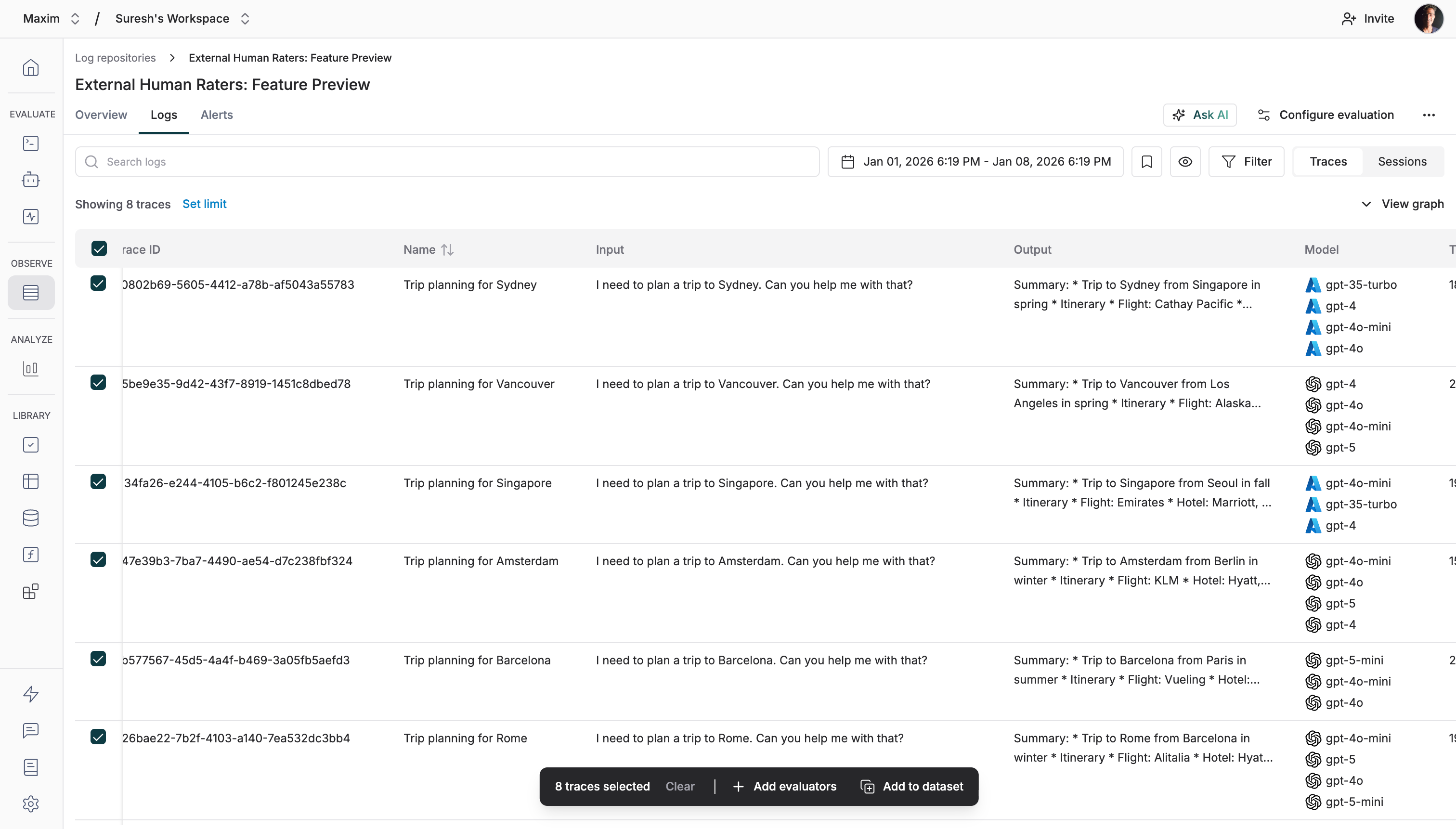
Select one or more traces or sessions from the table, then use the floating action panel to click Add evaluators.Tips:
- Select individual logs using row checkboxes
-
Use the top checkbox to select all logs within the current filters and time range
3
Choose evaluators
Select one or more Human Evaluators from the dropdown.Optionally, include other evaluators if you want to retroactively evaluate existing logs.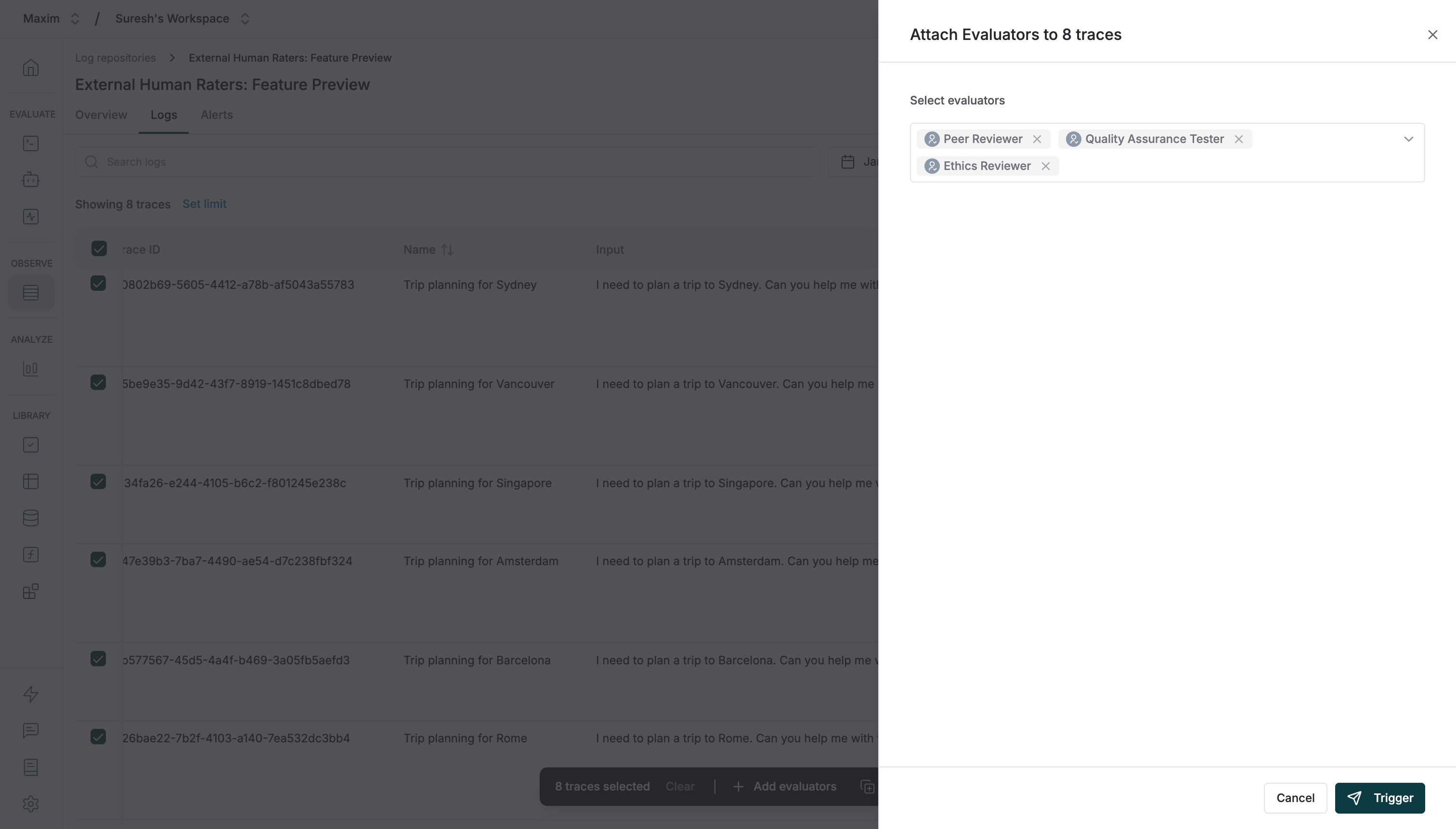
4
Invite external raters via email
Click Trigger to open the Human Evaluation dialog.In the dialog: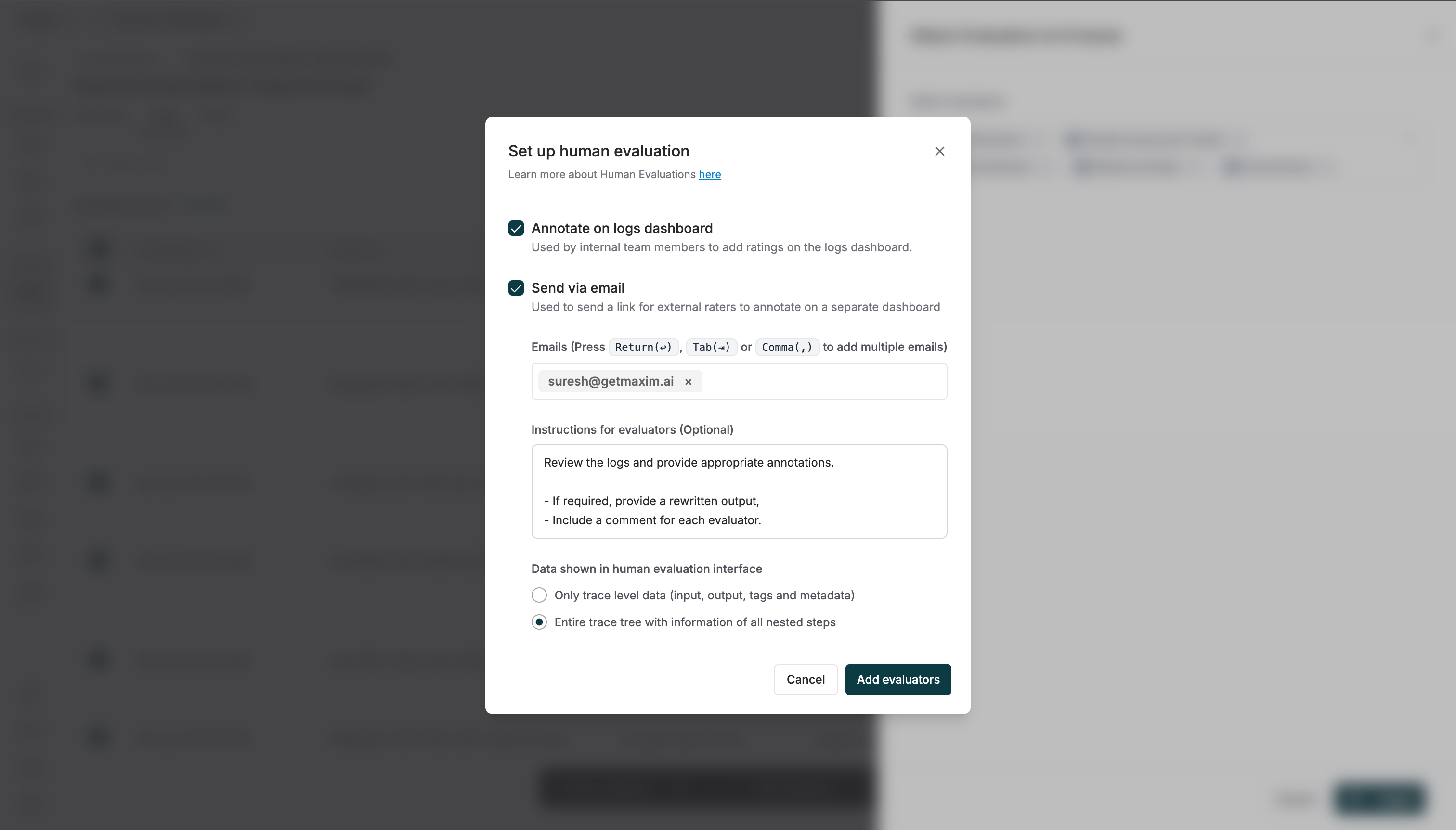
- Enter external rater email addresses
- Add instructions for raters
- Choose what data they can access
- Only trace-level data (input, output, tags, metadata)
- Entire trace tree, including nested steps
5
Start annotation
Invited external raters receive an email with a link to the annotation dashboard.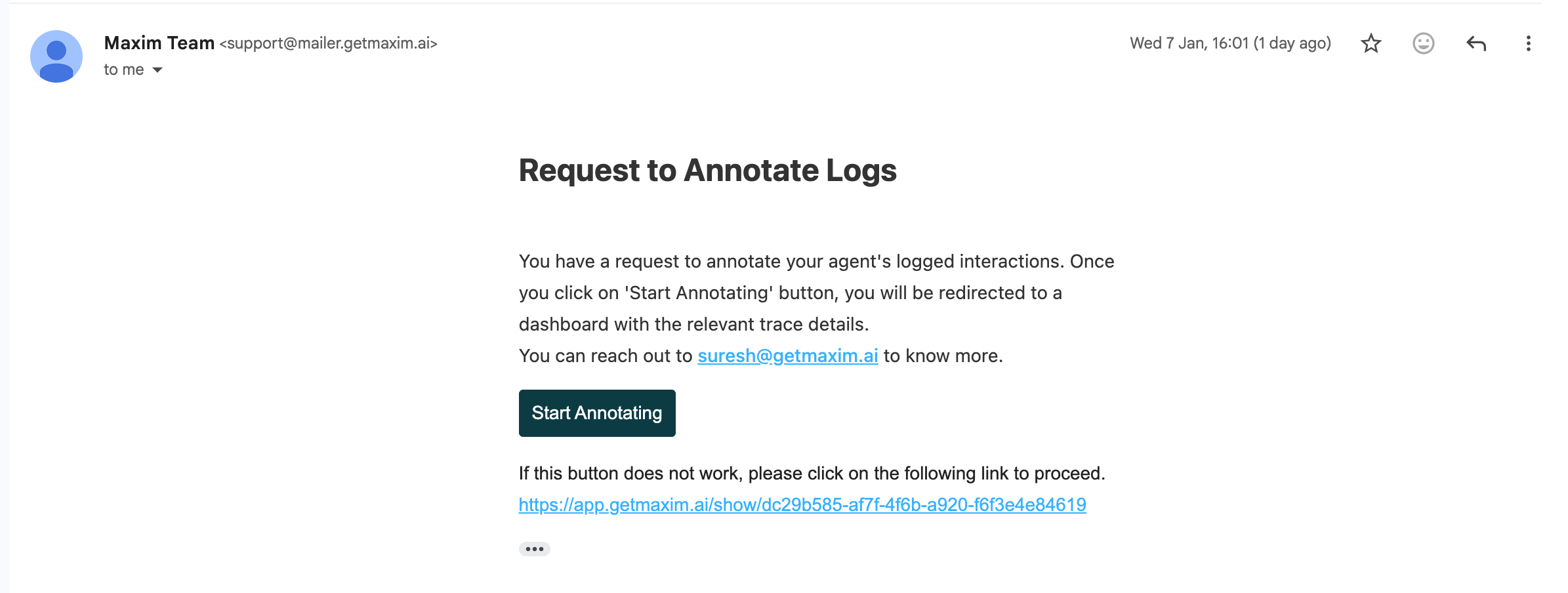
6
Annotation dashboard
External raters use the dashboard to review data and submit annotations.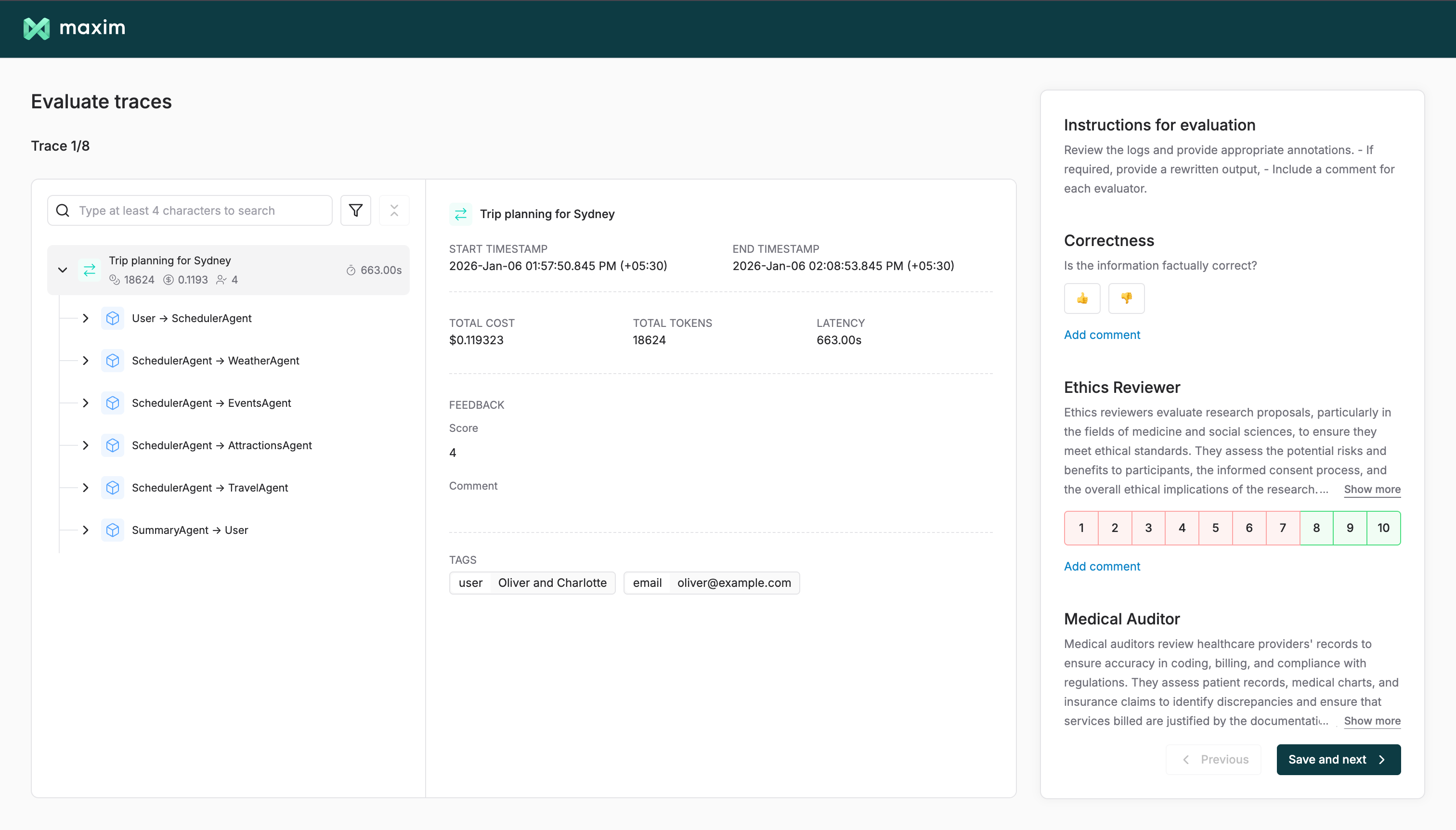
Viewing Annotations
Annotations are visible in two places.Logs table
- Human evaluator scores appear as columns
- Scores are averaged across all annotators
- Click any cell to add or edit an annotation
Trace details (Evaluation tab)
The Evaluation tab shows:- Average scores per evaluator
- Individual annotations, including scores, comments, and rewritten outputs
- Pass/fail status, based on evaluator criteria
Understanding Annotation Scores
- Average scores – Mean score across all annotators for a log
- Individual breakdown – View each annotator’s scores, comments, and rewrites
- Pass/fail evaluation – Determined by evaluator configuration
- Rewritten outputs – Multiple rewritten versions may exist and are all preserved